
X (Twitter) Password Recovery Method
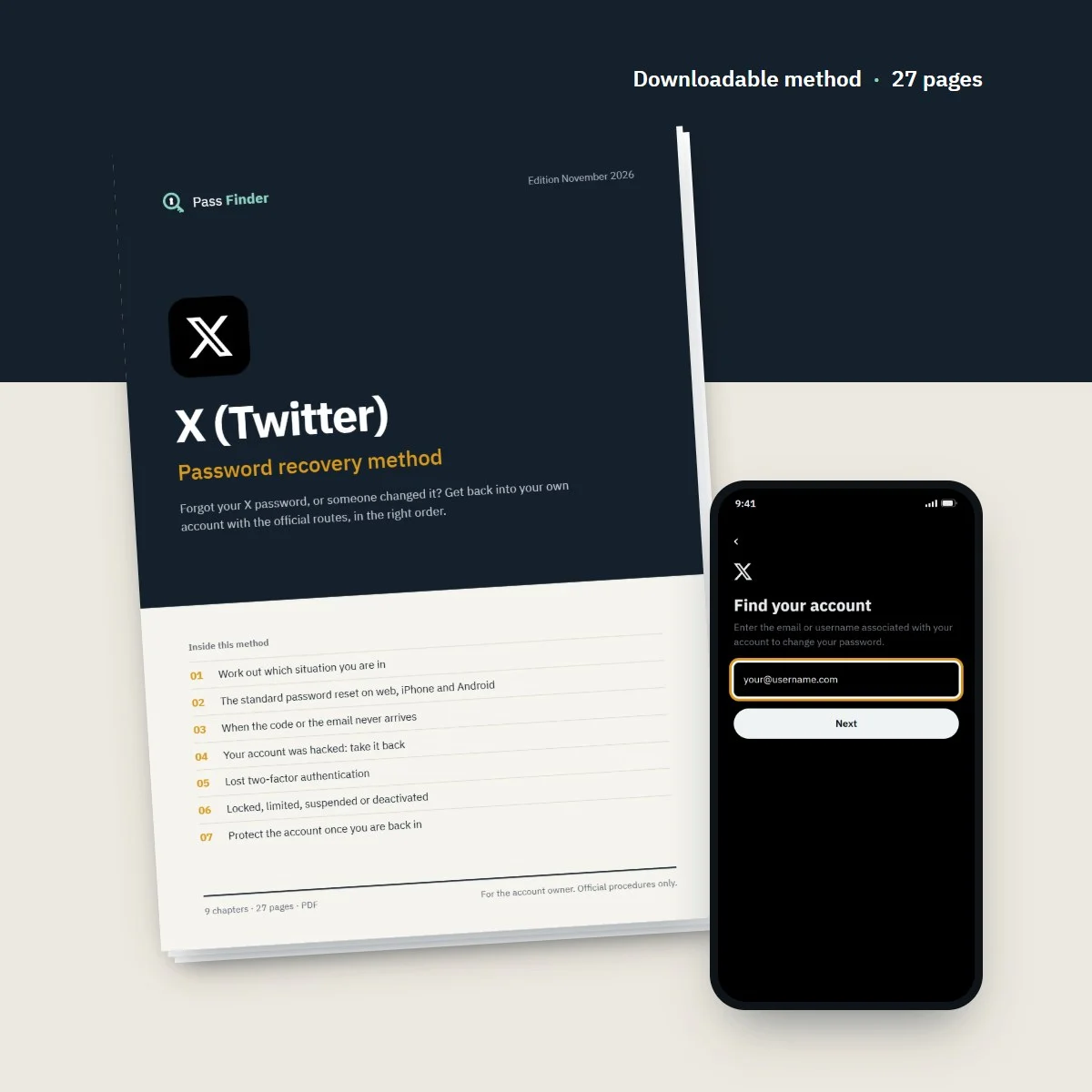
Forgot your X password, or someone changed it? Get back into your own account with the official routes, in the right order.
- Password reset on web, iPhone and Android with X's exact labels
- Hacked: reverse an email change and file the right form
- Lost authenticator: backup codes and the official route
- 8 ready-to-send messages for support, appeals and followers
- Instant download
- Secure card payment
- 14-day refund if it does not fit your case
For the account owner only. Every method uses the platform’s official tools.
- Format
- PDF document (A4), opens on phone, tablet and computer
- Language
- English
- Delivery
- Download link right after payment, also sent by email
- Updates
- Free updated versions for 12 months
Which situation are you in?
Each case has its own route. The method covers all of them, with the exact screens and the messages to send.
Forgotten password
The "Forgot password?" reset step by step on every device, including accounts opened with Google or Apple. Chapter 2 of the method.
The reset code never arrives
Spam filters, wrong address, carrier blocks and the one-hour lock after too many attempts. Chapter 3.
Hacked, email or phone changed
The reversal link from [email protected], the hacked-account form field by field, and how to lock the intruder out. Chapter 4.
Lost two-factor authentication
Backup codes, devices still logged in, and the support request when nothing is left. Chapter 5.
Locked, limited or suspended
Verification prompts, countdowns and the appeal form, with two appeal templates. Chapter 6.
Deactivated account
How the 30-day window works and how to reactivate before the account is deleted. Chapter 6 of the method.
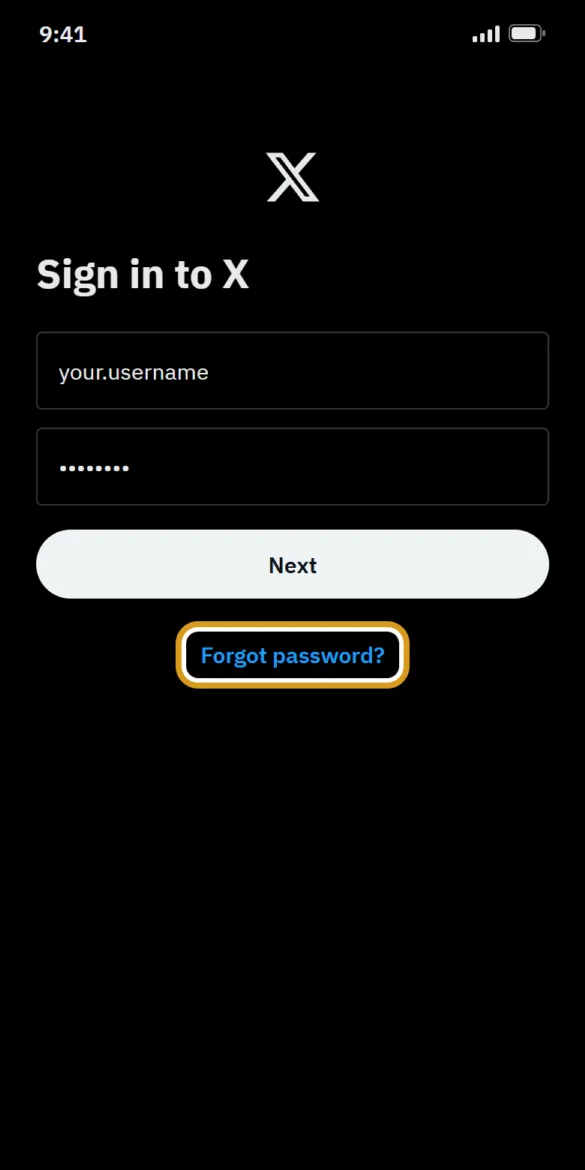
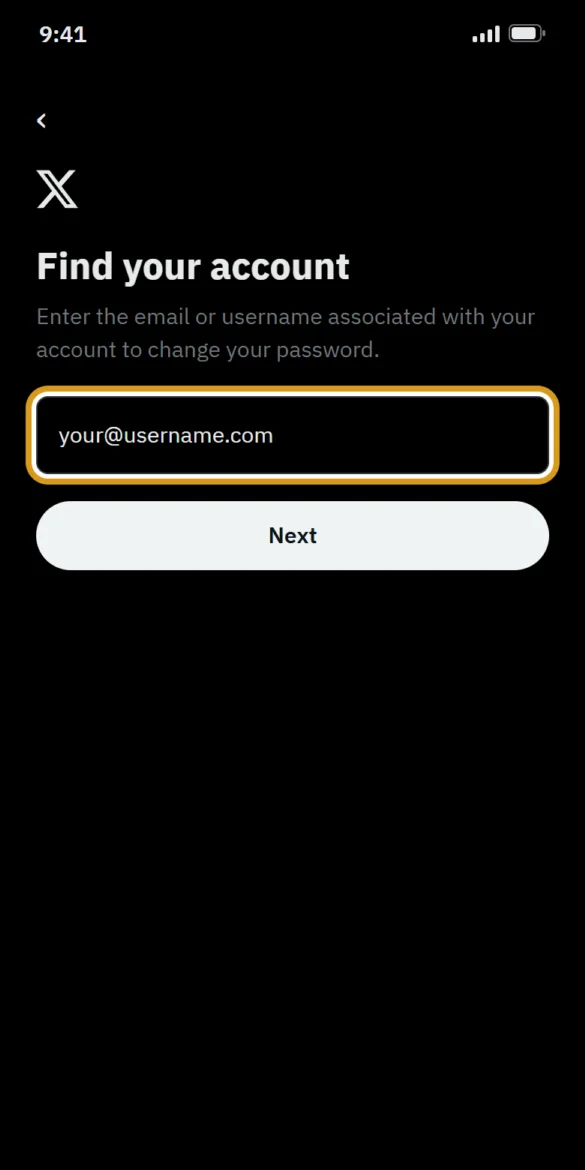
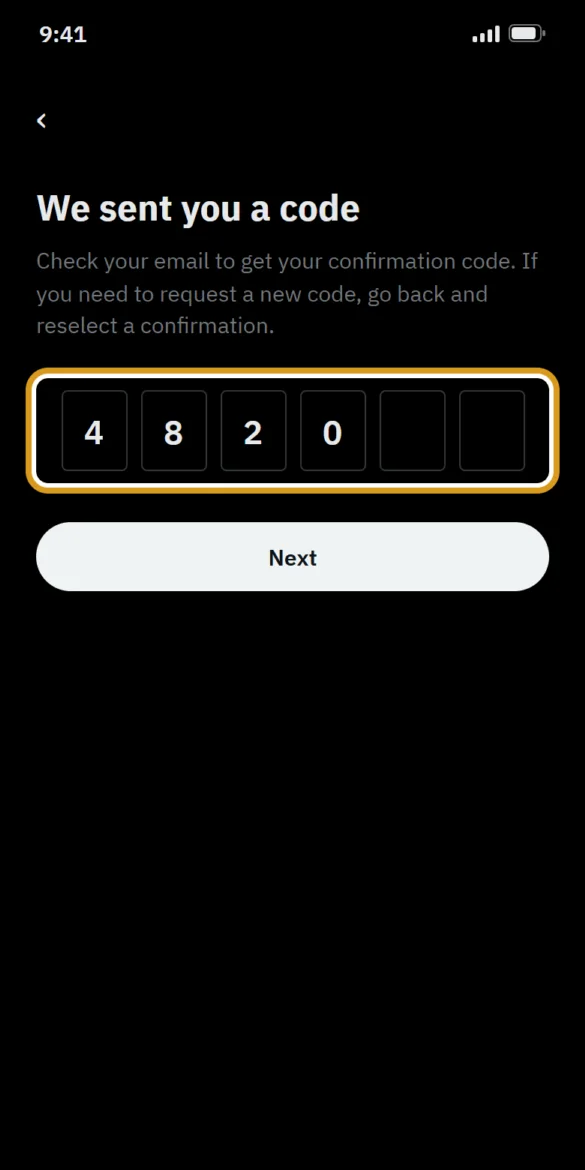
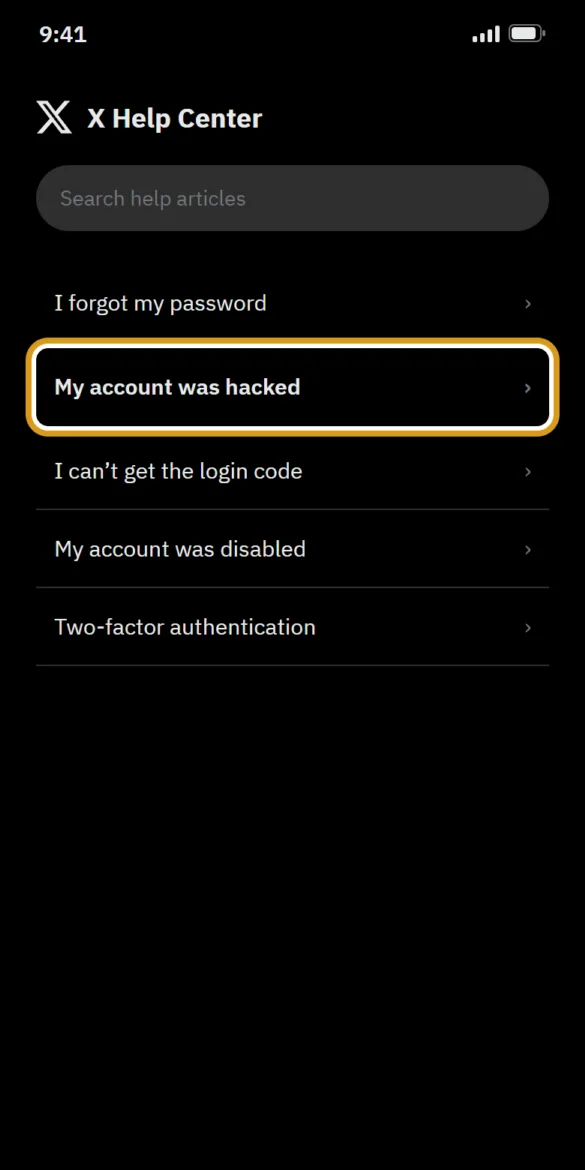
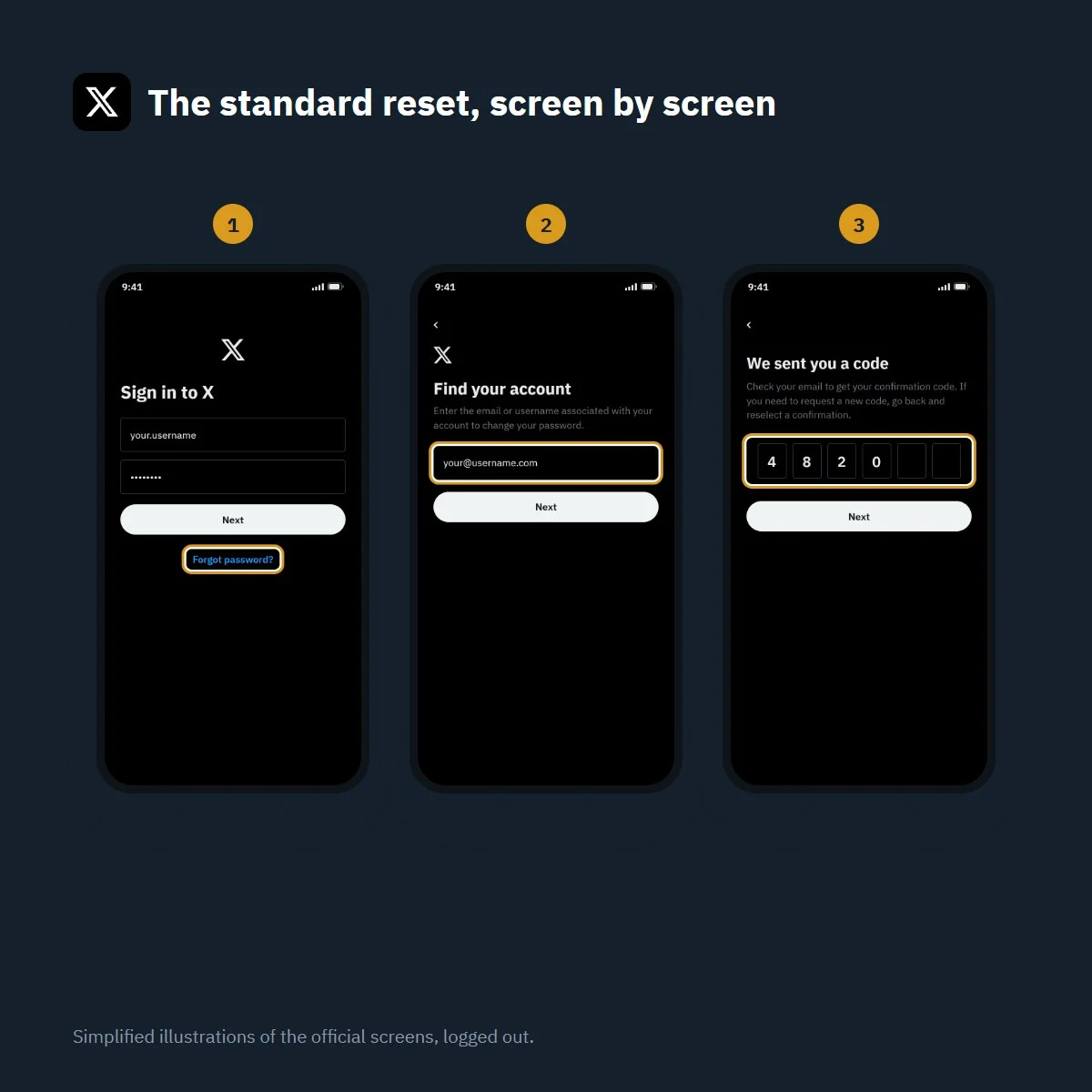
Forgot your X password? The reset in four steps
Simplified illustration of the official screens, logged out. Labels may vary slightly with app version.
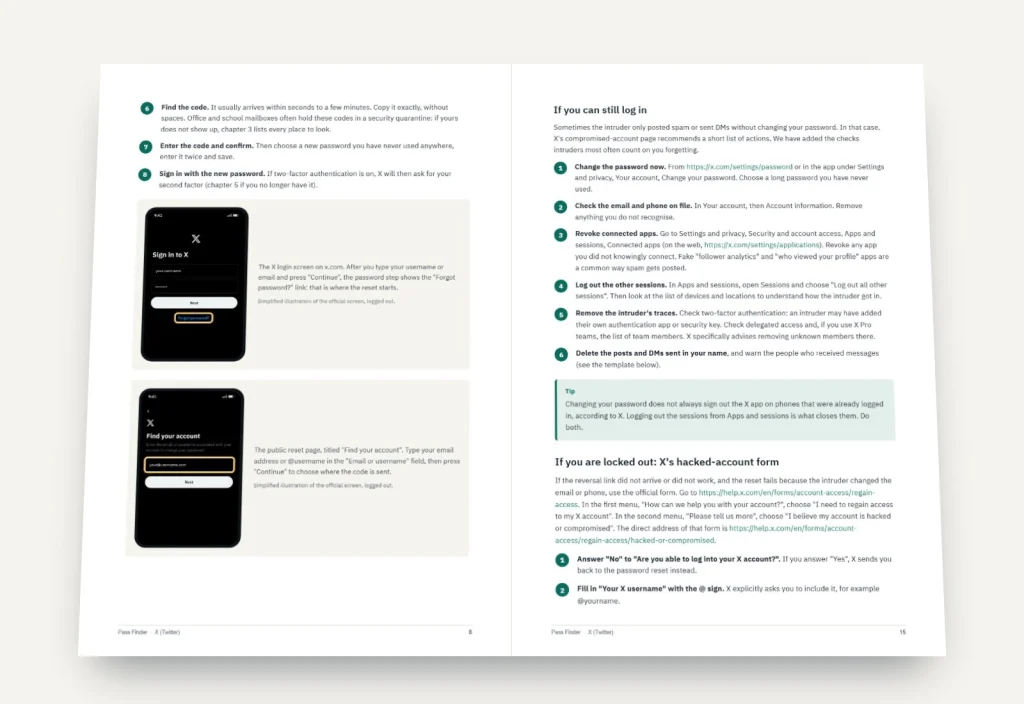
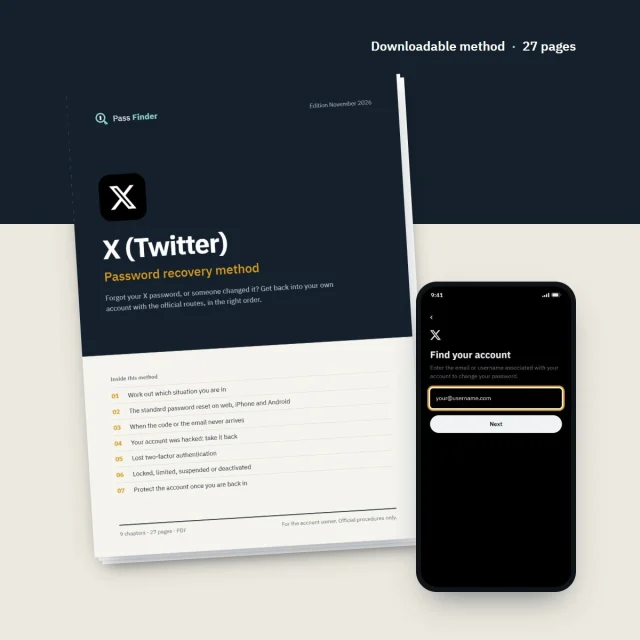
What’s inside the method
9 chapters, 27 pages. Each chapter ends with a checklist so you know where you stand.
-
01
p. 4
Work out which situation you are in
Read X's message, take stock of the email, phone and second factor you still control, and pick the right chapter.
-
02
p. 7
The standard password reset on web, iPhone and Android
The "Forgot password?" flow with X's exact labels, the text-message option and accounts opened with Google or Apple.
-
03
p. 11
When the code or the email never arrives
Spam folders, wrong addresses, carrier blocks, the one-hour lock and what to do when the mailbox is dead.
-
04
p. 14
Your account was hacked: take it back
The [email protected] reversal link, X's hacked-account form field by field, cleaning up sessions and apps, and warning followers.
-
05
p. 18
Lost two-factor authentication
Backup codes and their order, devices still logged in, and the support request when you have nothing left.
-
06
p. 20
Locked, limited, suspended or deactivated
Verification prompts, countdowns, the appeal form with two templates, and the 30-day reactivation window.
-
07
p. 23
Protect the account once you are back in
Password manager, authentication app, passkey, Password reset protect, sessions and connected apps.
-
08
p. 24
Scams that target people locked out of X
Fake recovery experts, fake support DMs, codes sent by mistake and paid services that cannot deliver.
-
09
p. 25
If nothing worked
A final checklist, when to stop waiting, and how to start a new account and bring your followers with you.
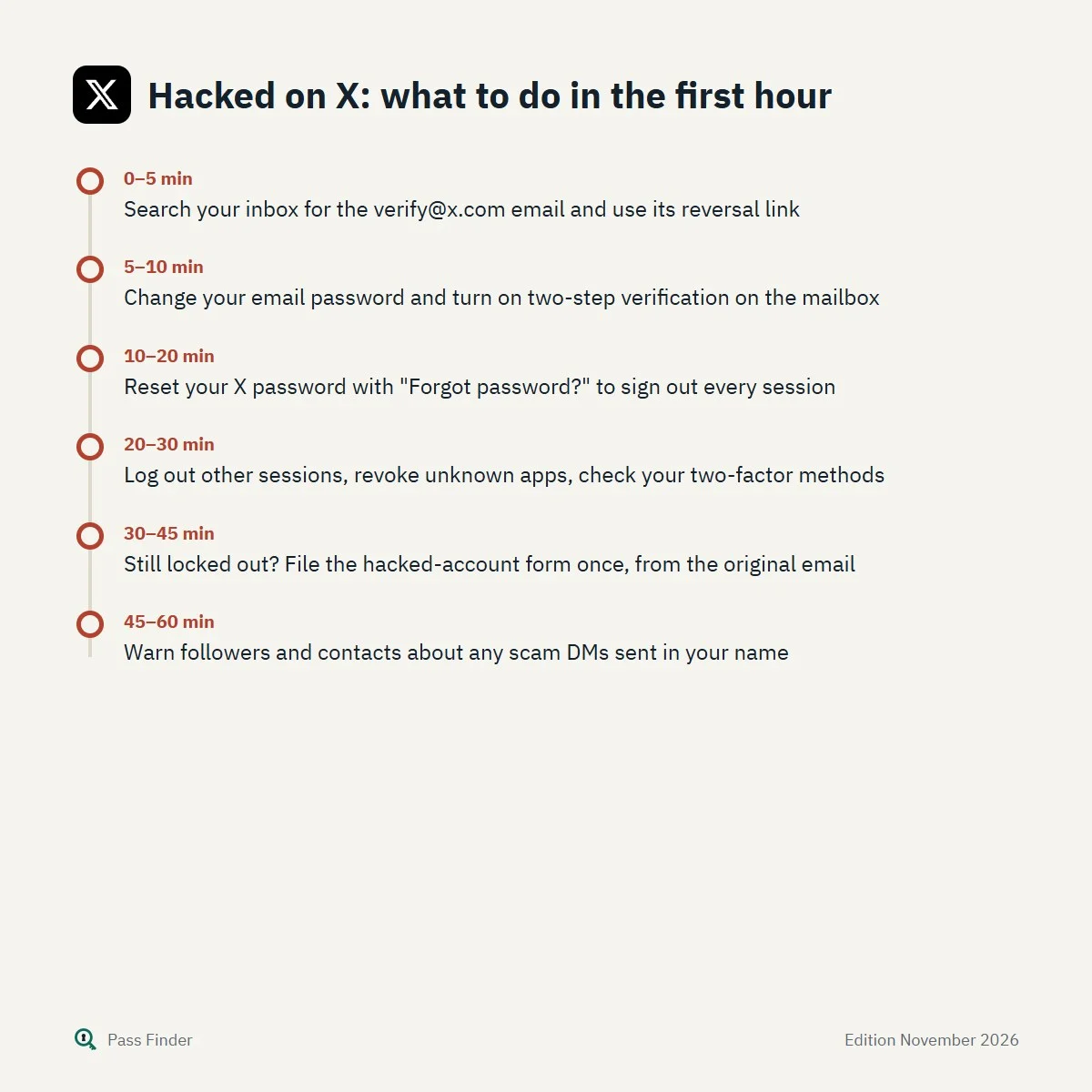
Hacked on X: what to do in the first hour
- 0–5 minSearch your inbox for the [email protected] email and use its reversal link
- 5–10 minChange your email password and turn on two-step verification on the mailbox
- 10–20 minReset your X password with "Forgot password?" to sign out every session
- 20–30 minLog out other sessions, revoke unknown apps, check your two-factor methods
- 30–45 minStill locked out? File the hacked-account form once, from the original email
- 45–60 minWarn followers and contacts about any scam DMs sent in your name
You forgot your X password, or the one you always used is suddenly refused, and the account behind it holds your followers, your DMs, years of posts and perhaps the profile your work depends on. Being locked out of X (the platform most people still call Twitter) usually means one of six things: a forgotten password, a reset code that never arrives, a hacked account whose email was changed by someone else, a lost authenticator app, a locked or suspended account, or a deactivation that is about to become permanent.
Each one has its own official route, and using the wrong one wastes days and reset attempts. Below, we explain the free X password reset that solves most cases, how to tell which situation you are in, and why recoveries fail, so you can get back into your account in the right order and steer clear of the “recovery experts” who reply to every complaint. Everything here is meant for the person who owns the account and relies only on X’s own tools and forms.
How X decides you are the owner
X has no selfie video check and no ID upload for ordinary account recovery. We could not find any official recovery route on X based on a photo of your face or a scan of your documents. Instead, X relies on three things: access to the email address on the account, access to the phone number on the account if one was added, and, if two-factor authentication is on, your second factor (an authentication app, a security key, a backup code, or a text message for Premium subscribers).
That has a direct consequence. X’s help centre states that without the email or phone linked to the account, recovery options are limited, and that sometimes the only option is to create a new account. So the real work, in most difficult cases, is getting your email or phone number back. People who skip that step and fill in X’s forms again and again rarely get anywhere.
Forgot your X password? The free reset with “Forgot password?”
If you still receive emails at the address on your account, the standard reset fixes the problem in a few minutes, even if you have no idea what your password was.
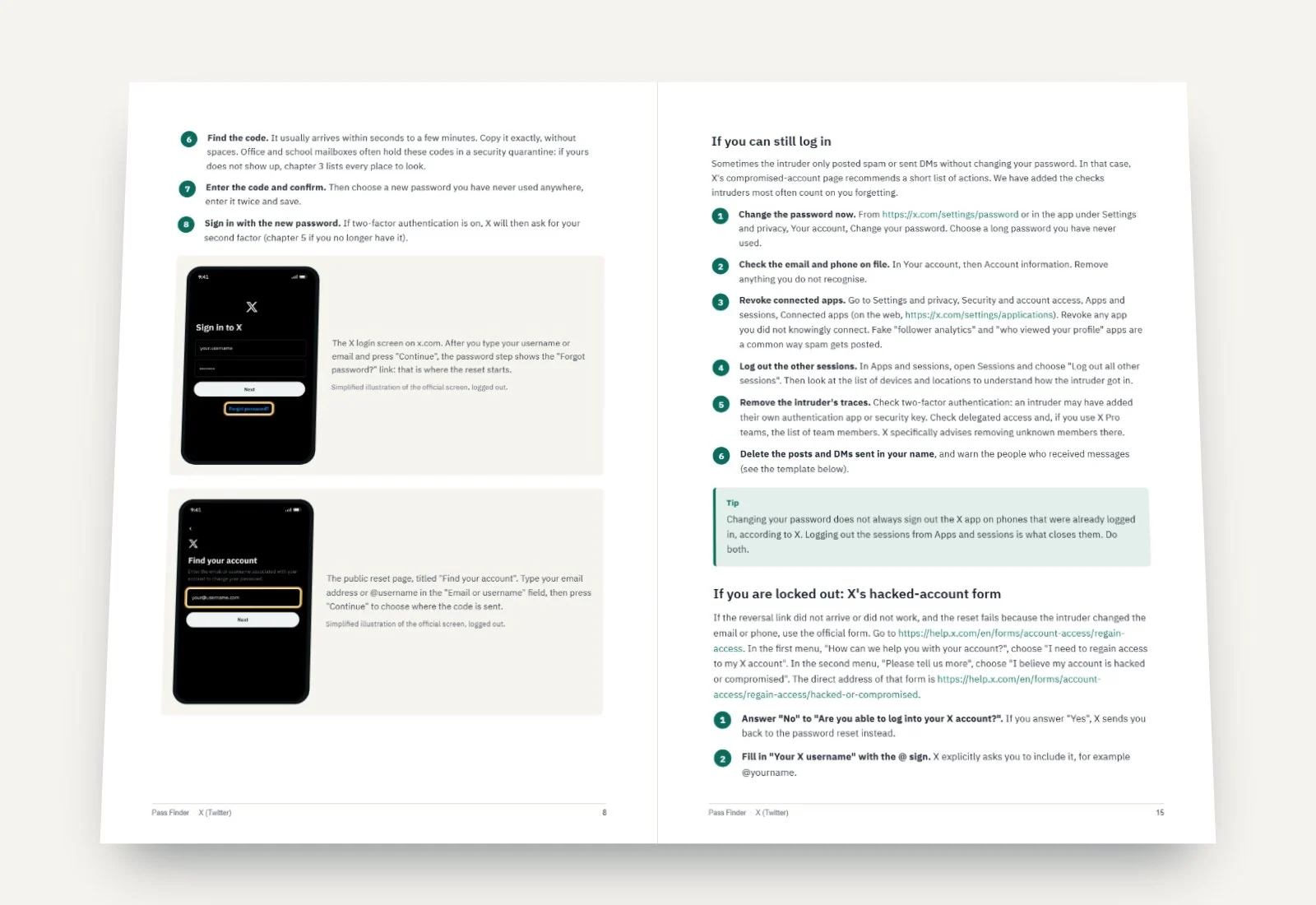
- Go to x.com/login or open the X app. Type your email or username in “Email or username” and press “Continue”.
- On the password step, click “Forgot password?”. You can also open the reset page directly: x.com/i/flow/password_reset. It is titled “Find your account”.
- Enter your email address or @username and press “Continue”. If X asks you to confirm your email or phone, type the full address or number: that extra question means the “Password reset protect” option is on.
- Choose where to receive the code, then enter it. X’s help centre says the code is valid for 60 minutes.
- Choose a new password you have never used anywhere else, confirm it and sign in.
The reset signs you out of every active X session on every device. If someone else was using your account, that kicks them out too.
Two limits are worth knowing before you start. If two-factor authentication is turned on, X only allows a password reset by email, not by text message. And if several X accounts share your phone number, you cannot start a reset with that number: use your username instead.
Signed up with “Continue with Google” or “Continue with Apple” and never set a password? X’s help centre says you can create one through the “Forgot password” link, using the email of your Google or Apple account. It gives you a second way in that does not depend on Google or Apple.
Which situation are you in?
The message X shows you is the best clue. Here is how to read it.
| What you see | What it usually means | Where to start |
|---|---|---|
| “Wrong password!” and you still get X’s emails | Forgotten or outdated password | The standard reset above |
| No code in your inbox or by text | Spam filtering, wrong address, carrier block, or too many requests | The checklist in the next section |
| “Locked out!” after several attempts | Temporary lock on login attempts | Wait about an hour without retrying |
| Email saying your email address was changed | Takeover in progress | The reversal link in that email, right away |
| X asks for an app code or key you no longer have | Lost two-factor authentication | Backup code, or X’s support form |
| “Your account has been locked” or “Please verify your account” | Security or anti-spam lock | Press “Start” and verify by phone, email or captcha |
| “Account suspended” | Suspension for spam, security or a rule violation | X’s appeal form, while logged in |
| Account deactivated | 30-day window before deletion | Log in before day 30 |
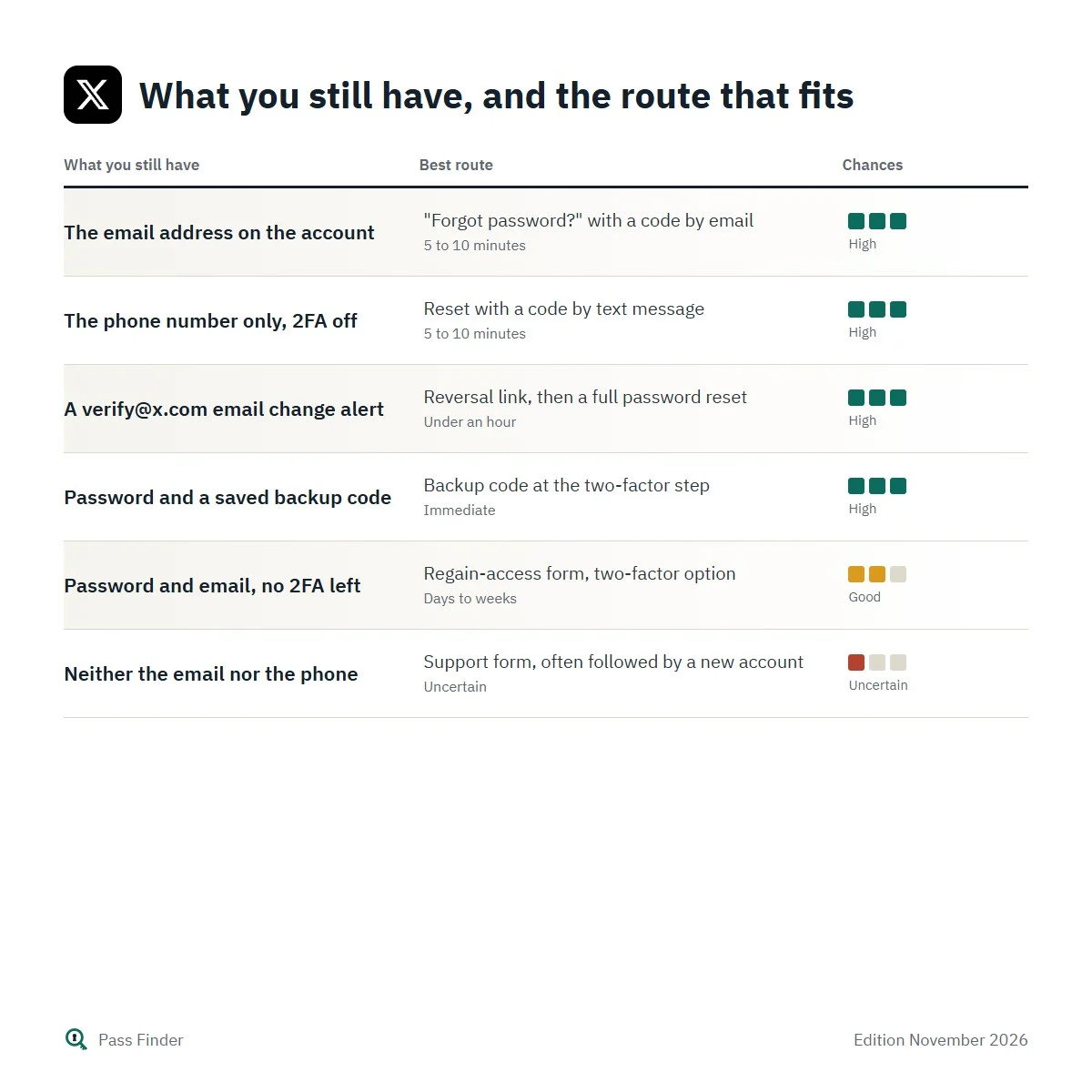
What you still have, and the route that fits
| What you still have | Best route | Typical delay | Chances |
|---|---|---|---|
| The email address on the account | "Forgot password?" with a code by email | 5 to 10 minutes | High |
| The phone number only, 2FA off | Reset with a code by text message | 5 to 10 minutes | High |
| A [email protected] email change alert | Reversal link, then a full password reset | Under an hour | High |
| Password and a saved backup code | Backup code at the two-factor step | Immediate | High |
| Password and email, no 2FA left | Regain-access form, two-factor option | Days to weeks | Good |
| Neither the email nor the phone | Support form, often followed by a new account | Uncertain | Uncertain |
Why the reset code never arrives
A missing code is the most common reason people give up, and it is usually fixable. Work through these in order.
- Wait two full minutes. X’s own help centre warns that text messages can be delayed and asks you to wait at least two minutes before trying again.
- Search every folder. Spam, Promotions, Social, Updates, “Other”. Search for “x.com” and “Twitter” rather than scrolling. X notes that many small email domains filter its messages.
- Compare the address. The reset page shows a partly hidden version of the address it is sending to. Many people check their current inbox while the account still uses an old work or school address.
- Stop requesting new codes. Each new request makes the previous code useless, and rapid attempts trigger a lock on logins that X says lasts about an hour.
- Check the phone side. Flight mode, a new carrier, a prepaid plan that blocks short codes, a dual-SIM phone showing the message on the wrong line, or a spam filter for unknown senders.
- Know the Premium rule. Since March 2023, text-message two-factor authentication is only available to X Premium subscribers, according to X. If you cancelled Premium, texts may no longer be an option.
If the mailbox itself is dead, recover it through your email provider first. X cannot send a code anywhere else, and no form will change that.
Hacked account: the first hour
When the email address on an X account is changed, X sends a message to the previous address. X’s help centre says that if you receive an email from [email protected] about an email change you did not make, you can reverse it with the link in that email. That link is your fastest way back. Use it, then reset the password, which signs the intruder out.
Secure your mailbox before anything else. If the intruder can read your email, they can repeat the takeover as soon as you finish. Change your email password, check its forwarding rules and active sessions, and turn on its two-step verification.
If you can still log in, X recommends changing the password, checking that the email on the account is yours, and revoking third-party apps you do not recognise. Go further: open Settings and privacy, then Security and account access, then Apps and sessions, and choose “Log out all other sessions”. Then check two-factor authentication, because intruders sometimes add their own authenticator.
If you cannot log in, use the official form at help.x.com/en/forms/account-access/regain-access: choose “I need to regain access to my X account”, then “I believe my account is hacked or compromised”. X asks for your @username, an email address it verifies with a code, the date you last had access, and whether the account was created with an email or a phone number. X asks you to use the email address associated with the compromised account and sends further instructions there. X’s full checklist for compromised accounts is on its help page for compromised accounts.
X does not publish response times for these requests. Some people hear back within a day, others wait several weeks, and some only receive automated messages. Submit once, from the right address, and answer any reply briefly and consistently. The Pass Finder method for X includes ready-to-send replies for support emails, appeal texts, and the messages to send your followers when scam DMs went out in your name, along with the details of each form and what to do at every stage.

Lost two-factor authentication
If you know your password but cannot complete two-factor authentication, look for a backup code first. X shows one when you turn on two-factor authentication and recommends keeping a screenshot of it, so search your photo library, password manager and notes. On the login screen, choose “Choose a different two-factor authentication method” to enter it. X allows up to five active backup codes and asks you to use them in the order you created them: using one out of order invalidates the earlier ones.
Any device still logged in to X lets you replace the lost method directly, under Settings and privacy, Security and account access, Security, Two-factor authentication. If you have nothing left, X’s help centre says to contact support: on the regain-access form, choose “I am having a problem with the two-factor authentication method linked to my account”. Details are on X’s two-factor troubleshooting page.
Locked, suspended or deactivated accounts
A locked account (“Your account has been locked”, “Please verify your account”) usually asks you to press “Start” and confirm a phone number, an email code or a captcha. A limited account can either wait out a countdown by pressing “Continue to X” or, when offered, verify a phone or email to restore features sooner. X explains both on its page on locked and limited accounts.
A suspended account first gets a chance to follow on-screen prompts, such as confirming a phone number. If none appear, X asks you to log in to the suspended account, open a new browser tab and file an appeal on the appeal form. If the form says you are not logged into a suspended account, check which account is signed in. Appeal delays are not published; a short, honest explanation works better than a long protest.
A deactivated account stays recoverable for 30 days: log in and confirm that you want to reactivate. After 30 days the account is deleted and the username becomes available to others. If the account was deleted more than 30 days ago, nothing will bring it back.
Common mistakes that make recovery fail
- Paying a “recovery expert”. Nobody outside X can restore an X account. Anyone offering to bypass two-factor authentication is running a scam or offering to break the law.
- Trusting DMs from “X Support”. X’s support replies by email to the request you filed. Any message asking for your password, a reset code or a backup code is fake.
- Forwarding a code “sent by mistake”. It is your own code, triggered by someone trying to take your account.
- Filing the same form ten times. It does not speed anything up and can muddle your case.
- Leaving third-party apps connected. Scheduling tools and dashboards keep trying an old password and can re-trigger the one-hour lock.
What the method adds to X’s help pages
The free reset above handles a forgotten password. X’s help centre documents each form and setting, but on separate pages, and it does not say which to try first when the password reset fails, how to answer a support email so your case stays consistent, or when it is time to stop waiting. The Pass Finder method for X covers everything around the reset: a five-minute diagnosis, the reset on web, iPhone and Android, every reason a code goes missing, the hacked-account form field by field, lost authenticators, locked, limited, suspended and deactivated accounts, accounts opened with Google or Apple, the settings to change once you are back in (new password, passkeys, Password reset protect, sessions, connected apps), the scams that target people who are locked out, and a final checklist for when nothing works. It includes ready-to-send messages for support replies, appeals and follower warnings. Each step is checked against X’s official help pages and its logged-out screens, and reviewed when X changes its procedure.
If “Forgot password?” has not brought you back in, do not file the same form again. Download the X (Twitter) password recovery method, run the diagnosis in Chapter 1, and follow the route that matches what you still control.
Questions about this method
Other methods

Pass Finder is an independent publisher. We are not affiliated with, endorsed by or sponsored by Meta Platforms, Snap Inc., TikTok or X Corp. Platform names and logos belong to their owners and only identify the service each method is about.